
Short answer: The Galaxy S26 Ultra problems owners report most are display complaints (eye strain, a dimmer or fuzzier look, and a red tint on some units), Wi-Fi and Android Auto dropouts, camera glitches, slower-than-advertised charging, and notifications arriving late. Samsung has confirmed and fixed several of them in software, including the red tint, blurry 3x zoom and a Samsung Keyboard battery bug. So the first fix for almost everything is the same: install the latest update and update all your apps. If a problem survives that and a Safe mode test, it’s a warranty case.
Updated for One UI 9 (Android 17) · Last checked October 9, 2026 · By Stephen Jacob
Most faults are software or setup, not broken hardware. Each problem below gets the same four answers: what you see, why it happens, the quick fix, and when to contact Samsung. Samsung-confirmed issues are labelled and sourced; everything else is marked as owner reports. For the rest of the phone, see the Galaxy S26 Ultra owner’s guide.
Before you troubleshoot
- Samsung has already released software fixes for the red tint, blurry 3x zoom, Samsung Keyboard battery drain and an Always On Display bug. Update first.
- Did the problem start right after One UI 9? Give it a few days, then check the known One UI 9 issues.
- Swelling, physical damage or a permanent screen line? Skip to when to contact Samsung.
Galaxy S26 Ultra problems at a glance
| Problem | Most likely cause | Quick fix |
|---|---|---|
| Eye strain, dim or fuzzy screen | Privacy Display pixel design, low-brightness dimming, brightness settings | Turn Privacy Display off, try Eye comfort shield, raise brightness |
| Red or pink tint | Display calibration (Samsung: software) | Update; if it stays, ask Samsung for a calibration |
| Wi-Fi slow or dropping | Saved network or router fault, post-update bug | Forget the network, reset Wi-Fi and Bluetooth settings |
| Android Auto won’t connect | Restored app data, cable, Bluetooth profile | Clear Android Auto cache, connect by cable once, re-pair |
| Blurry 3x photos | Camera software (fixed by Samsung) | Install the April 2026 patch or later |
| Foggy camera lens | Condensation after a temperature change | Let it reach room temperature; service if it repeats |
| Battery draining fast | One app, post-update indexing, signal | Check Battery → View details; update Samsung Keyboard |
| Overheating | Charging, gaming, camera or one app | Cool it, find the app, check the charger |
| No 60W or 25W wireless charging | Wrong adapter, cable or pad | 60W PD 3.1 adapter; 45W+ adapter for the 25W pad |
| Late or missing notifications | Battery limits put the app to sleep | Remove the app from sleeping lists |
| Signal or mobile data drops | Carrier, SIM/eSIM or network settings | Toggle airplane mode, update, call your carrier |
| Bluetooth disconnects | Stale pairing | Unpair, reset Wi-Fi and Bluetooth settings, re-pair |
| S Pen not working | Magnetic case or accessory | Remove the case and test |
| Fingerprint fails | Screen protector | Use Improve accuracy, or a compatible protector |
| Speaker crackles or cuts out | Software (Samsung notice) | Restart and update |
| Lag, freezes, restarts | An app, storage, post-update state | Safe mode test, update apps, reset settings |
What should you try first for any S26 Ultra problem?
Update, restart, then isolate. Samsung’s own S26 support notices repeat step 1 almost every time.
- Update the phone: Settings → Software update → Download and install.
- Update every app: Galaxy Store → Menu → Updates → Update all; Play Store → profile icon → Manage apps & device → Update all.
- Restart. Swipe down for the Quick panel, tap the power icon, then Restart.
- Test in Safe mode. Open the power menu, touch and hold Power off until Safe mode appears, then tap it. Downloaded apps are disabled, so if the problem disappears, an app is responsible. Restart to exit.
If you suspect hardware, run Samsung Members → Support → Phone diagnostics. It tests the battery, Wi-Fi and other hardware, and gives you a record to show Samsung.
Why does my S26 Ultra screen cause eye strain or look dim?
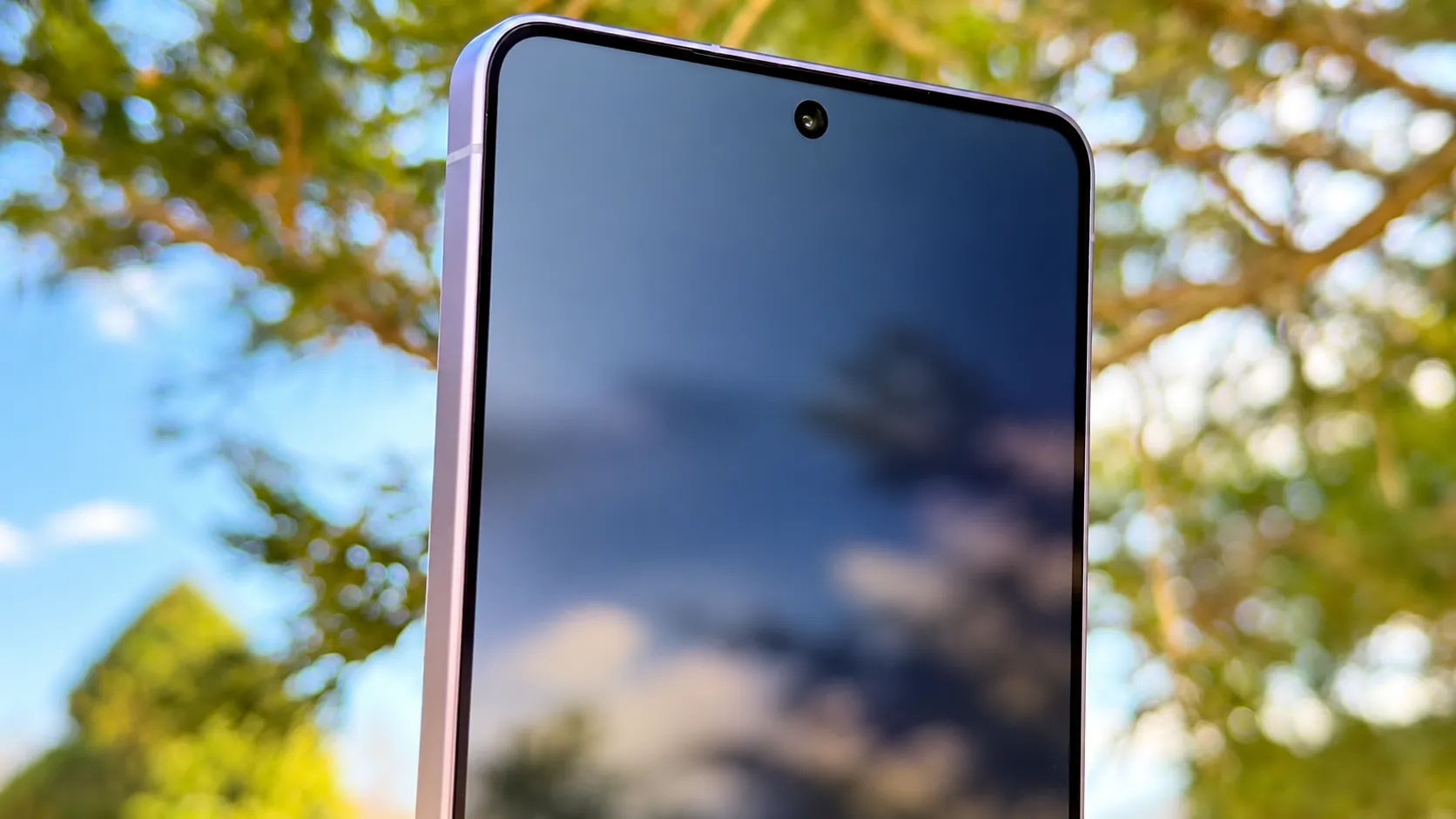
Some owners find the screen tiring, softer or dimmer than the S25 Ultra’s; many notice nothing. Samsung has acknowledged one part of it: with Privacy Display, “some variation will be seen when the phone is held at certain angles and when set to maximum brightness”, and Samsung says the impact in normal use “should be negligible” (Tom’s Guide).
- Symptom: eye fatigue or headaches, fuzzy text, a less bright or vivid look, or brightness shifting as you tilt the phone.
- Likely cause: unconfirmed. Owners blame the new pixel structure behind Privacy Display, which is there even with the feature off. Android Authority notes relatively low-frequency PWM dimming (around 480Hz), which can bother flicker-sensitive eyes at low brightness.
- Quick fix: turn Privacy Display off or limit it to specific apps (on One UI 8.5: Settings → Display → Privacy Display). Turn on Eye comfort shield (Settings → Display). For eye strain, keep the brightness slider high and lower it with Extra dim instead, which keeps the panel out of its low-brightness flicker range. If the screen dims only in the camera, Samsung says to turn off Dim strobing and Extra dim (Settings → Accessibility → Vision enhancements) and Adaptive brightness.
- When to escalate: Samsung Community moderators handle eye-strain reports case by case (they ask for the model and IMEI). If the screen genuinely makes you unwell, raise it with Samsung or your retailer inside the return window. If it’s the panel itself, no setting will fully change it.
Our Galaxy S26 Ultra review covers how Privacy Display looks in daily use. For eye strain, PWM flicker, red tint and other display faults in depth, see our S26 Ultra screen problems guide.
Why does my S26 Ultra screen have a red tint?
A red or pink patch, usually mid-screen, has appeared on some units after two or three months of use. Samsung says it’s software. In Korea it offered free service-centre calibration regardless of warranty and announced a remote fix (SamMobile).
- Symptom: a reddish rectangle or band, clearest on white screens or at high brightness.
- Likely cause: display calibration values (software, per Samsung).
- Quick fix: update. Samsung began a “colour optimisation” fix in Korea on August 26, 2026, alongside the August patch. Some owners still see tint or coloured edge dots afterwards; Samsung’s advice then is to adjust the display colour setting or visit a service centre.
- When to escalate: if the tint survives current firmware, ask a Samsung service centre for the display calibration. I haven’t seen a worldwide schedule for the fix, so check with local Samsung support first.
Are green lines or flickering on the S26 Ultra screen a known problem?
Not as a known defect. The early viral “green line” images were widely judged fake or unverified, and only a few isolated reports have appeared since. A permanent line that survives a restart and shows in Safe mode is a hardware fault for Samsung’s warranty. A line or flicker in one app only is worth an update and a restart first. If YouTube in particular darkens the screen, Samsung’s fix is to close and reopen it and update it from the Play Store.
Why is my S26 Ultra Wi-Fi slow or disconnecting?
Wi-Fi is among the most-searched S26 Ultra problems, and the most common owner complaint since One UI 9 (slow speeds, “connected without internet”). Samsung fixed “Wi-Fi connection errors” in the One UI 9 beta but hasn’t acknowledged a stable-release bug, so treat it as a local fault first.
- Symptom: drops, slow speeds, or a network that won’t join.
- Likely cause: a corrupted saved network, the router, a third-party app, or a post-update fault.
- Quick fix: per Samsung’s Wi-Fi checklist, restart the phone and router, forget and rejoin the network (Settings → Connections → Wi-Fi, touch and hold it, Forget network), and test in Safe mode. Then use Settings → General management → Reset → Reset Wi-Fi and Bluetooth settings (this deletes saved networks and pairings).
- When to escalate: if every network fails, including another phone’s hotspot, and Samsung Members diagnostics flags Wi-Fi, contact Samsung. If it’s one router, update its firmware.
Why won’t Android Auto connect to my S26 Ultra?
Android Auto trouble affects every Android phone, and Android Authority found S26 owners for whom the usual fixes didn’t work. Samsung’s Galaxy fix list is the place to start.
- Symptom: won’t connect, drops mid-drive, or wireless mode never starts.
- Likely cause: app data restored by Smart Switch, a worn cable, Bluetooth permissions, or the car’s head unit.
- Quick fix: restart, then clear the cache (Settings → Apps → Android Auto → Storage → Clear cache), and clear storage too if you set up with Smart Switch. Update the phone. Under Settings → Connections → Bluetooth, tap the settings icon next to the car and check Calls and Audio are on, or unpair and re-pair. For wireless trouble, connect once by cable first, with a known-good cable.
- When to escalate: if no phone works in the car, ask the car maker about a head-unit update. If only the S26 Ultra fails, report it through Samsung Members.
Why are my S26 Ultra 3x zoom photos blurry?
It was a confirmed launch bug, and it’s fixed. A Samsung community moderator said the blurry 3x shots were addressed in the April 2026 security update (build S948BXXS2AZCL in early regions).
- Symptom: soft 3x photos, worst in low light with flash, a preview that jumps briefly at 3x, or slightly soft corners.
- Likely cause: camera software. Samsung’s support page puts the jump down to parallax as the lenses switch, and the soft corners to autofocus moving the lens.
- Quick fix: install the April 2026 patch or anything newer (Settings → Software update).
- When to escalate: if 3x shots are still soft in good light on current software, contact Samsung.
Why is my S26 Ultra camera lens fogging up?
It’s condensation, and it should clear by itself. As Android Authority explains, IP68 doesn’t stop the small amount of moisture inside a phone condensing behind the lens glass after a sudden temperature change.
- Symptom: mist inside the telephoto or main lens, often after a car’s AC vent, a steamy bathroom or cold weather.
- Likely cause: moving quickly between hot and cold air.
- Quick fix: let the phone return to room temperature. Don’t heat it.
- When to escalate: if a new phone fogs repeatedly in normal use, ask for a warranty replacement early. Repeated fogging can leave marks, and damage that looks like misuse may not be covered later.
Other camera glitches Samsung has documented
- Screen darkens while taking photos: turn off Dim strobing, Extra dim and Adaptive brightness (see the display section above).
- Portrait mode videos won’t upload or play in some third-party apps: Samsung says the cause is incorrect metadata. Install Gallery Assistant from the Galaxy Store, tap Improve compatibility, select the detected videos and tap Apply.
- Scan (documents or QR codes) keeps loading: go to Settings → Apps → More options (⋮) → Special access → All files access and turn on Camera, then open Camera settings and tap Reset settings.
- Expert RAW saves 12MP at 5x: this is a One UI 9 report covered in the known One UI 9 issues section.
Not a fault, just the wrong settings? See our best S26 Ultra camera settings.
Why is my S26 Ultra battery draining fast?
Usually one app, post-update background work or a weak signal, not a bad battery. Settings → Battery → View details shows the culprit. Samsung has a support notice for Galaxy S26 drain caused by Samsung Keyboard, fixed by updating the keyboard to version 5.9.30.81 or later through the Galaxy Store. Our battery draining fast guide has the full diagnosis (overnight airplane-mode and Safe-mode tests, plus nine fixes), and the S26 Ultra battery life guide covers everyday stamina.
Why is my S26 Ultra getting hot?
Warmth while fast charging, gaming, filming or settling after an update is normal; heat warnings, the camera closing or heat at idle are not. Most cases trace to one app, the charging setup or the environment. Our S26 Ultra overheating guide explains each heat warning and ten fixes.
Why won’t my S26 Ultra charge at full speed?
Almost always the adapter, cable or pad. The 60W wired and 25W wireless maximums (specs) need the right gear:
- Wired 60W (Super Fast Charging 3.0): a 60W USB PD 3.1 adapter, such as Samsung’s EP-T6010, and a Samsung 3A USB-C cable. 45W and 25W adapters work, just more slowly. Check Settings → Battery → Charging settings → Fast charging is on.
- Wireless 25W: Samsung’s Magnet Wireless Charger (EP-P2900) needs a 45W or higher adapter; on a 25W adapter it gives 15W, and the same applies to third-party Qi2.2 pads. With no built-in magnets, the phone also needs a magnetic case to align with the coil. Android Authority found many chargers still settle at 10–15W.
- Not charging at all: swap cable and adapter, check the port for lint, restart. If known-good Samsung gear fails, it’s a service issue.
Our S26 Ultra charging guide covers speeds and chargers in detail.
Why are notifications late or missing on my S26 Ultra?
Usually battery optimisation has put the app to sleep. Gmail and messaging apps come up most often in Samsung Community threads.
- Symptom: alerts arrive only when you unlock the phone, or not at all.
- Likely cause: sleeping-app limits, Power saving, a Do not disturb or sleep mode, or the app’s notification categories being off.
- Quick fix: in Settings → Battery → Background usage limits, remove the app from Sleeping apps and Deep sleeping apps. Set its battery use to the unrestricted option under Settings → Apps → [app] → Battery (wording varies by version). Turn off Power saving and any active mode, and check the app’s notification categories.
- When to escalate: if every app is late on both Wi-Fi and mobile data, update and test in Safe mode. A cleaner or VPN app is a common culprit.
For the settings worth changing on a new phone, see 25 S26 Ultra settings to change first.
Why does my S26 Ultra keep losing signal or mobile data?
Start with your carrier and SIM. Samsung hasn’t confirmed an S26 Ultra modem fault, though owners on several carriers report problems in Samsung Community.
- Symptom: 5G dropping, “no service”, or data failing with full bars.
- Likely cause: carrier provisioning, the SIM or eSIM, weak 5G coverage, or network settings.
- Quick fix: toggle airplane mode, restart and update. Reseat the SIM, or have the carrier re-provision the eSIM. In weak 5G areas, try LTE under Settings → Connections → Mobile networks → Network mode (wording varies by carrier). Then use the mobile network reset in Settings → General management → Reset.
- When to escalate: carrier first. If the same SIM works in another phone in the same spot, take the S26 Ultra to Samsung.
Why does Bluetooth keep disconnecting on my S26 Ultra?
Usually a stale pairing, and re-pairing fixes it.
- Symptom: earbuds, a watch or the car disconnect or won’t reconnect.
- Likely cause: a corrupted pairing, or outdated accessory firmware.
- Quick fix: unpair (Settings → Connections → Bluetooth, the settings icon next to the device, Unpair), restart both and pair again. Update the accessory’s app or firmware. If several devices drop, use Reset Wi-Fi and Bluetooth settings (see the Wi-Fi section).
- When to escalate: if every accessory drops after a reset, contact Samsung. For audio that beeps or cuts out, see the speaker section.
Why is my S26 Ultra S Pen not working?
Check your case first. With some third-party magnetic cases attached, the phone itself warns that “magnets in accessories can interfere with your S Pen’s signal”.
- Symptom: skipped strokes, dead zones (often on one side), missed light touches, or the pen showing as removed.
- Likely cause: a magnet near the digitiser under the screen. Samsung’s own magnetic cases reportedly don’t trigger the warning.
- Quick fix: remove the case, re-dock the pen, restart, and test across the whole screen.
- When to escalate: if it fails with no case on, contact Samsung.
The S26 Ultra’s S Pen also has no Bluetooth. Samsung confirms that Air Actions aren’t supported, so there’s no remote shutter. That’s by design, not a fault.
Why won’t my S26 Ultra read my fingerprint through a screen protector?
Samsung says a screen protector can change the recognition area, and it has a fix.
- Symptom: mismatches or low accuracy after fitting a protector.
- Likely cause: the protector.
- Quick fix: Settings → Security and privacy → Screen lock and biometrics → Fingerprints, select the fingerprint, tap Improve accuracy, and scan the same finger 10 times. Or re-register it with the protector on.
- When to escalate: if it fails with a protector made for the S26 Ultra, or with no protector at all, contact Samsung.
Why does my S26 Ultra speaker crackle or cut out?
Samsung has a notice for this on the S26, and its fix is software.
- Symptom: intermittent beeps, mechanical sounds or dropouts during music, YouTube or other audio.
- Likely cause: software, per Samsung’s notice.
- Quick fix: restart and keep the software updated.
- When to escalate: if crackling persists on current firmware and in Safe mode, check the grille for debris, then book a repair.
Why is my S26 Ultra lagging, freezing or restarting?
Usually an app, low storage or leftovers from an update, not the Snapdragon 8 Elite Gen 5.
- Symptom: stutters, apps freezing, “System UI isn’t responding”, or random restarts.
- Likely cause: a misbehaving app, nearly full storage, or settings changed during an update.
- Quick fix: if it’s smooth in Safe mode, uninstall recent apps one at a time. Update everything, free up storage and run Settings → Device care. Apps missing after Smart Switch? Samsung says to install them manually from the store; if one won’t install, it may have been discontinued. If it keeps happening, try Reset all settings (on One UI 8.5: Settings → General management → Reset), which keeps your data. For the full process, see our S26 Ultra data transfer guide.
- When to escalate: restarts that continue in Safe mode after a settings reset. Back up and factory reset (set up as new), and contact Samsung if even that doesn’t help.
Known One UI 9 issues on the Galaxy S26 Ultra
Samsung started the One UI 9 (Android 17) rollout for the S26 series in Korea on September 16, 2026. It reached the US from September 23 and beta testers in Europe and India on September 29, and some regions may wait into October. The October 2026 security update reached unlocked US models on October 8 (S948U1UES4BZIG) and is reported as security-focused. Here’s what’s verified and what’s owner-reported as of October 9, 2026. For what One UI 9 changes, see One UI 9 explained.
| Issue | Status | What to do |
|---|---|---|
| Always On Display not working in some conditions | Samsung fix released: Always On Display app 8.9.66.1 (SamMobile) | Galaxy Store → Menu → Updates → Update all |
| Lock screen and AOD clock sits too high, or the date drifts, with a Good Lock ClockFace style | Confirmed as a known issue by a Samsung Community moderator; fix pending | Use the default clock for now; send an error report if it happens with the default clock |
| Expert RAW saves 12MP instead of 24MP at 5x–9.9x | Independent report (SammyGuru); the standard Camera app is unaffected | Use the Camera app’s 24MP mode for 5x shots until Expert RAW is updated |
| Slow Wi-Fi or “connected without internet” | Owner reports; Samsung fixed Wi-Fi errors in Beta 5 but hasn’t acknowledged a stable bug | Wi-Fi steps above; send an error report |
| Some apps crash, or Messenger chats stay marked unread | Owner reports; other owners on the same build are fine | Update or reinstall the app; report it to the app developer |
| Music pausing or video freezing | Owner reports (Samsung Members) | Update apps, restart, send an error report |
| Battery drain or heat in the first days | Expected post-update work; not a confirmed bug | See the battery and overheating guides |
Report One UI 9 bugs through Samsung Members → Support → Error reports right after they happen; moderators ask for these logs.
When should you contact Samsung or use your warranty?
Contact Samsung when the problem survives an update, a restart and a Safe mode test, or straight away for anything physical:
- The red tint is still visible on current firmware (in Korea, Samsung offered free calibration regardless of warranty).
- A permanent line, dead area or touch failure that shows up in Safe mode.
- Repeated lens fogging, or a camera that stays soft on current software.
- No charging with known-good Samsung cables and adapters, or a hot USB-C port.
- Samsung Members diagnostics reports a failed test, or Battery status shows Weak or Bad on a phone under a year old.
- Swelling, a lifting back panel or a burning smell. Stop charging and contact Samsung immediately.
Before you hand it over: screenshot the problem and your diagnostics, note your software version (Settings → About phone → Software information), send logs via Samsung Members → Support → Error reports, and back up. Samsung offers support chat on its website and in the Samsung Members app. For out-of-the-box faults, the retailer’s return window is often faster than a repair. Warranty terms vary by country, and accidental or liquid damage is usually treated differently, so check your region’s Samsung warranty page.
FAQ
What are the most common Galaxy S26 Ultra problems?
Display complaints (eye strain, dimness, red tint on some units), Wi-Fi and Android Auto dropouts, camera glitches, slower-than-expected charging and late notifications. Most are software or setup issues that an update or a settings change fixes.
Is the S26 Ultra red tint fixed?
Samsung released a colour-optimisation fix starting in Korea on August 26, 2026, and says the cause is software. Some owners still see a tint or edge dots afterwards. If yours does, ask a Samsung service centre for a calibration.
Does the S26 Ultra have a green line issue?
Not as a known defect. The early viral reports were judged fake or unverified, and genuine cases are isolated. A permanent line that shows in Safe mode is a warranty repair.
Why is my S26 Ultra screen so dark?
Usually Adaptive brightness, Extra dim, Privacy Display or Power saving. If it darkens only in the camera, turn off Dim strobing, Extra dim and Adaptive brightness. Tom’s Guide also measured it slightly dimmer than the S25 Ultra even with Privacy Display off.
Why can’t my S26 Ultra S Pen take pictures?
Its S Pen has no Bluetooth, so Air Actions and the remote shutter aren’t supported. Use the volume key or the camera timer instead.
Is there a Galaxy S26 Ultra recall?
I found no recall notice for the Galaxy S26 Ultra as of October 9, 2026. The fixes Samsung has issued have all been software updates or service calibrations.
Should I install One UI 9 on my S26 Ultra?
Yes, for most people. It carries current security patches, and the confirmed issues so far are minor and app-level. Give the phone a few days to settle, and update all apps straight after installing.
The bottom line
Most S26 Ultra problems are fixable at home: update the phone and apps, use the quick-fix table, and test in Safe mode. Samsung’s confirmed bugs (red tint, 3x blur, Samsung Keyboard drain, AOD) all have software fixes, though the red-tint fix hasn’t worked for everyone. Contact Samsung for anything that survives an update and Safe mode, or anything physical.
For hidden features worth switching on once your phone is behaving, see S26 Ultra tips and tricks. Everything else is in the Galaxy S26 Ultra owner’s guide.