
Short answer: Most Galaxy S26 Ultra screen problems come from three things: low-frequency PWM dimming (eye strain and headaches, worst at low brightness), Privacy Display trade-offs (a dimmer, softer or uneven picture), and a colour-calibration fault that Samsung confirmed causes a red tint on some units. The first two are design traits, so settings can only reduce them. The red tint is software, and Samsung offers a fix and calibration. Green lines are mostly fake reports. A fault that shows in Safe mode and on a fresh restart, but not in a screenshot, is a hardware case for Samsung.
Updated for One UI 9 (Android 17) · Last checked October 9, 2026 · By Stephen Jacob
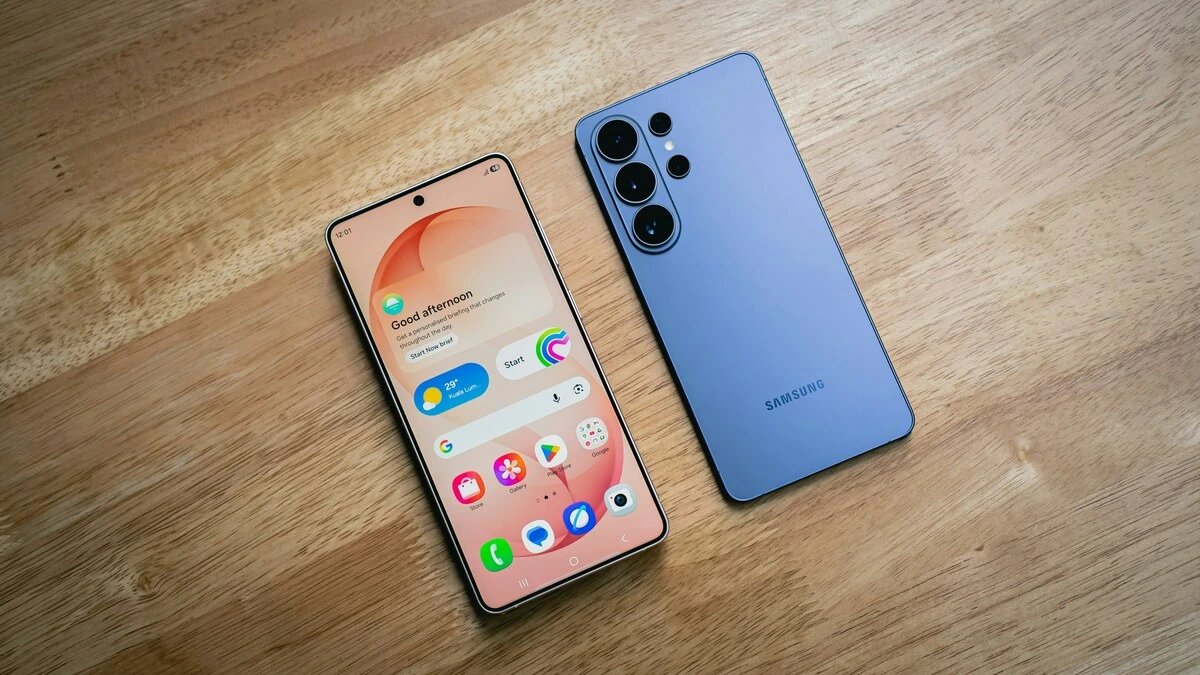
The S26 Ultra’s 6.9-inch QHD+ Dynamic AMOLED 2X panel is not the same screen as the S25 Ultra’s. It adds Samsung’s Flex Magic Pixel technology for Privacy Display, and that one change explains a lot of what owners notice. This guide goes deeper on the display than our Galaxy S26 Ultra problems hub: what each fault looks like, the real cause, how to test it, fixes from quick to deep, and when to send it in.
The 60-second screen triage
- Tired eyes, headaches or nausea, worse at night? → Probably PWM. Go to eye strain.
- Dim, milky or grainy only when Privacy Display is on, or when you tilt the phone? → Expected trade-off. See Privacy Display.
- A reddish patch in the middle of white screens? → Known calibration fault. See red tint.
- Take a screenshot. If the line, tint or blotch is in the screenshot, it’s software or an app. If it isn’t, it’s the panel.
- A permanent line, dead touch area or damage after a drop? → Hardware and warranty.
Galaxy S26 Ultra screen problems at a glance
| Symptom | Most likely cause | First fix | Hardware? |
|---|---|---|---|
| Eye strain, headaches | PWM dimming at 240–480Hz | Brightness above 50% plus Extra dim | Design trait; return it if you’re sensitive |
| Dim or grainy with Privacy Display | Narrow pixels only; wide pixels switched down | Limit it to apps, PIN entry and notifications | No |
| Screen too dim overall | Adaptive brightness, Extra dim, heat, Good Lock module | Check the four dimming settings | Rarely |
| Grainy, fuzzy or washed-out look | Sub-pixel rendering, FHD+ resolution, Vivid mode | QHD+, Natural mode | No |
| Red or pink patch | Calibration values (Samsung: software) | Update, then free calibration | No, per Samsung |
| Green or pink line | Mostly fake reports; rare real panel faults | Screenshot test, Safe mode | Yes, if permanent |
| Flickering | App, Dark mode, camera under artificial light | Update app, change refresh rate | If it persists in Safe mode |
| Touch not working, ghost touches | Charger, protector, Touch sensitivity, app | Samsung Members touch test | If a dead zone shows in the test |
| Burn-in or ghost images | Static elements at high brightness | Rest the screen, change layout | Yes, if permanent |
What should you check before fixing any S26 Ultra screen problem?
Four checks tell you whether you’re dealing with a setting, an app or the panel.
- Update everything. Settings → Software update, then the Galaxy Store and Play Store. Samsung’s display troubleshooting starts here, and the red-tint fix arrived this way.
- Do the screenshot test. Press side key + volume down and view the screenshot on another device. A screenshot captures what the phone draws, not what the panel shows. A tint or line that’s missing from the screenshot is in the panel.
- Test in Safe mode. Open the power menu, touch and hold Power off, then tap Safe mode. If the fault disappears, a downloaded app is responsible.
- Run Samsung’s own tests. In Samsung Members → Diagnostics → Phone diagnostics (some regions label it Support), run Touch screen, and use Display color to adjust white balance. Samsung notes you start the full diagnostics, stop it, then pick the item.
Why does my S26 Ultra screen cause eye strain or headaches?
The most likely cause is PWM dimming. The S26 Ultra controls brightness by switching its pixels on and off very fast, and some people’s eyes and brains react to that flicker. Samsung didn’t change it this year, there’s no DC dimming or anti-flicker toggle, and no update can fully fix it.
What testers measured
- Notebookcheck measured flicker at 240Hz (worst case) with a secondary 480Hz frequency, and lists low-frequency PWM as a con (Notebookcheck review).
- Android Authority reports the S26 series runs at 480Hz, “as confirmed by company representatives”, with no DC dimming or flicker-reduction setting (Android Authority).
- For context, Tech Advisor notes that the IEEE 1789 standard treats flicker under 1,250Hz as “high risk”. Android Authority points to cheaper rivals dimming at 2,160–3,840Hz.
Not everyone is affected. In Samsung’s own eye-strain thread, some owners report problems within 30 minutes and others report nothing after a full day. A Samsung moderator asked affected owners for their model and IMEI to review cases individually. Samsung has also said Privacy Display’s sub-pixel changes don’t “affect viewing comfort” (via Tech Advisor). Some owners still blame the new pixel layout, but that link isn’t proven.
How to tell if PWM is the cause
- Symptoms are worse at low brightness and in dark rooms, when PWM flicker is most noticeable.
- You’re fine with LCD screens or high-frequency OLED phones, but not with recent iPhones, Pixels or Galaxys (most dim at 240–480Hz).
- Turning Privacy Display off doesn’t help.
Fixes, from quick to deep
- Keep the brightness slider high, and dim with Extra dim instead. Extra dim lowers brightness in software rather than through the panel, so the hardware stays out of its worst flicker range. Tech Advisor suggests a slider of at least 85% for sensitive users; Android Police suggests more than halfway. Turn it on in Settings → Accessibility → Vision enhancements → Extra dim, set the intensity, and add the Quick settings tile.
- Turn off Adaptive brightness (Settings → Display) while you test, so it can’t drop you back into the low range.
- Try Privacy Display off, or at least Maximum privacy protection off (Settings → Display → Privacy display).
- Use Eye comfort shield (Settings → Display), and try Enhanced comfort, which Samsung says reduces saturation and contrast for sensitive users.
- Cut motion. Reduce animations and Reduce transparency and blur are in Vision enhancements. Dark mode can help at night.
- Return it if none of this works. If you’re PWM-sensitive, the honest answer is a different phone. Act inside your retailer’s return window.
Is Privacy Display making my S26 Ultra screen dim or grainy?
Yes, when it’s on, and that’s how it works. Every pixel has a “narrow” partner that throws light forward and a “wide” one that spreads it sideways. With Privacy Display on, the wide pixels drop to a minimum, so side viewers see a dark screen and you get less light and detail head-on.
The measured cost:
| Test | Normal | Privacy Display on |
|---|---|---|
| Notebookcheck, everyday brightness | 1,000 nits | 645 nits |
| Tom’s Guide, peak with Privacy Display and Maximum privacy protection on | 1,806 nits | 586 nits (a 67.6% drop) |
Sources: Notebookcheck and Tom’s Guide. Notebookcheck also found colour accuracy drops and the image looks “slightly milky” with it on. Samsung says Maximum privacy protection “may slightly blur the screen or alter colors”.
Even with it off, Samsung admits “some variation” at certain angles and at maximum brightness, which it calls negligible in normal use. It also says the S26 Ultra has the same resolution as the S25 Ultra, but sub-pixel rendering was adjusted, “which can make text edges look slightly different”.
Set it up so it only works when you need it
Samsung’s settings live under Settings → Display → Privacy display (or touch and hold its Quick panel tile) (Samsung support):
- Turn off Turn on Privacy display for full-screen use.
- Under Conditions for turning on, pick specific Apps (banking, messaging), PIN, pattern, password, and Notification pop-ups, which hides only the pop-up.
- Leave Maximum privacy protection off unless you’re on a crowded train. It applies to all of those conditions, not to one app.
- Outdoors, Samsung says the display may look darker with Privacy Display on, and suggests turning it off there.
- If colours look unnatural, adjust White balance and Vividness in Settings → Display → Screen mode → Vivid → Advanced settings (unavailable while Adaptive color tone is on).
One UI 9 changes one annoyance: Android Central reported that in the beta, the privacy effect on a picture-in-picture video covers only the floating window instead of dimming the whole screen.
“My Privacy Display doesn’t work”
It’s subtle in a dim room or from a slight angle. Test it in bright light with someone at a real side angle, then try Maximum privacy protection. If one side or area behaves differently from the rest after an update and a restart, compare it with a store demo unit and contact Samsung.
Why is my S26 Ultra screen so dim?
First rule out settings. Samsung’s screen-colour checklist lists Extra dim, Eye comfort shield, Color filter and Adaptive color tone as features that make the screen look darker or tinted. Also check Power saving and Privacy Display.
Then set expectations. Tom’s Guide measured 1,806 nits peak against Samsung’s 2,600-nit rating (and 1,860 on the S25 Ultra). Notebookcheck measured a 1,424-nit maximum in its standard test and up to 2,975 nits on HDR content. Peak brightness needs Adaptive brightness on and bright light. See the specs explainer for what the 2,600-nit figure means.
Quick to deep:
- Camera viewfinder darkens: Samsung’s fix is to turn off Dim strobing and Extra dim (Accessibility → Vision enhancements), turn off Adaptive brightness, and raise the slider.
- Dim outdoors with Adaptive brightness on: an XDA owner found it dimmer than 100% manual with Extra brightness. Samsung documents that toggle for older models (it appears only when Adaptive brightness is off), and owners report it on the S26 Ultra.
- Good Lock’s Display Assistant installed? Owners on Reddit say removing it restored normal outdoor brightness on One UI 8.5. That’s unconfirmed, but it’s a free test.
- Dim when hot: the phone limits brightness to cool down. Our overheating guide covers the warnings.
Why does my S26 Ultra screen look grainy, fuzzy or washed out?
Part of it is the panel, and part is settings. Samsung’s sub-pixel changes for Privacy Display can soften text edges. Samsung also confirmed the panel is 8-bit; its “10-bit” wording referred to colour processing. An 8-bit panel can show faint banding in smooth gradients.
What helps:
- Settings → Display → Screen resolution → QHD+ if it’s set lower. Samsung says resolution changes how sharp things look (it costs some battery).
- Screen mode → Natural. Notebookcheck rated colour accuracy “excellent” in Natural; the default Vivid mode looks slightly cooler.
- Check Font size and style and Screen zoom (Settings → Display) if text looks off.
- Keep Privacy Display limited to the apps that need it.
Our 25 settings to change first covers the display settings worth fixing on day one.
Why does my S26 Ultra screen have a red tint?
It’s a calibration fault, and Samsung says it’s software. Owners report a reddish rectangle in the middle of the screen, clearest on white backgrounds. In an August 4, 2026 notice, Samsung Korea said a software calibration fixes it, offered free same-day calibration at service centres “regardless of” warranty status, and promised a remote update (SamMobile).
Status as of October 9, 2026:
- The “colour optimisation” update began in Korea on August 26 with the August patch (firmware ending AZHJ there).
- Some owners still saw tint afterwards. Others reported small dots near the top, or tint moved to the top and bottom edges (Android Police, Aug 31).
- I haven’t found a Samsung statement on the global rollout or the post-fix dots. The October patch is described as security-focused.
Fix order:
- Install every available update.
- Turn off Adaptive color tone, Color correction, Color filter, Extra dim and Eye comfort shield to rule them out.
- Use Samsung Members → Phone diagnostics → Display color to rebalance white.
- If the patch is still there, book a Samsung service visit and ask specifically for the S26 Ultra display calibration. Mention the Korea notice; local terms may differ.
Is the S26 Ultra green line problem real?
Mostly not. The viral March image was an edited joke post, later shared as real. An April video had text showing through the “line”, and its poster claimed an update to the software the phone shipped with. A couple of plausible cases have appeared since, but they’re isolated, and Samsung hasn’t commented.
- Line in the screenshot, or in one app only: software. Update the app and restart.
- Line not in the screenshot, still there in Safe mode and after a restart: panel fault. Book a warranty repair.
- Dark bands only in camera photos under indoor lights: that’s lighting flicker, not the screen. Samsung’s fix is Pro mode with a shutter speed of 1/120s or slower.
Why is my S26 Ultra screen flickering?
Most flicker reports are an app, Dark mode or the refresh rate. Samsung notes the screen may flicker in Dark mode with certain apps and says to update the phone and apps. Then:
- Switch Motion smoothness between Adaptive and Standard (Settings → Display) to see if one setting causes it.
- If YouTube darkens the screen, Samsung’s advice is to close it, reopen it and update it.
- If it flickers only at very low brightness, that’s PWM. See the eye strain section.
- If it flickers in Safe mode, after a restart, at any brightness: contact Samsung.
Why is my S26 Ultra touch screen not working or ghost touching?
Start with the charger and the screen protector, because they cause most cases.
- Ghost touches only while charging: a Samsung moderator says a damaged or third-party charger can upset the touchscreen. Try a known-good Samsung charger and cable. Charging habits that heat the phone are covered in the battery drain guide.
- Clean the screen, and remove a lifting or cracked protector.
- Touch sensitivity (Settings → Display): turn it on if a protector makes taps miss, and off if the bare screen feels too sensitive.
- Accidental touch protection (Settings → Display), on by default on most Galaxy phones, stops pocket touches.
- Run the touch test in Samsung Members (Phone diagnostics → Touch screen) and fill every area. A strip that won’t register, such as the bottom edge owners report, is a hardware fault if it also fails in Safe mode.
- Last resort: back up and factory reset, then go to service.
Can the S26 Ultra get screen burn-in?
Yes, like any OLED, though there’s no sign of a wider S26 Ultra burn-in problem. A few owners have posted possible status-bar or app ghosts. Faint images that fade after a few minutes of varied content are temporary image retention. Ghosts that never fade are burn-in.
To reduce the risk: avoid hours of static content at maximum brightness, use a shorter screen timeout, use dark themes, and move or change static widgets and wallpapers now and then. For permanent ghosts, have a Samsung service centre inspect the panel. Whether it’s covered depends on your country’s warranty terms.
Which screen protector works with the S26 Ultra?
Choose a clear protector made for the S26 Ultra, and skip privacy films.
- Skip privacy screen protectors. Samsung says third-party privacy protectors “may reduce brightness” and that the built-in Privacy Display removes the need for one.
- Keep the anti-reflection. The front glass is Corning Gorilla Armor 2 with an anti-reflective coating. A glossy protector covers that, so look for an anti-reflective one. Samsung’s own Galaxy S26 Ultra Anti-Reflecting Film (EF-US948) says it keeps touch response and fingerprint recognition, and fits Samsung’s S26 Ultra cases.
- Fingerprint failing after fitting one? Samsung’s fix: Settings → Security and privacy → Screen lock and biometrics → Fingerprints, select the print, tap Improve accuracy and scan the same finger 10 times. Or re-register it with the protector on.
When is it a hardware fault, and what does a repair cost?
Contact Samsung or your retailer when:
- A line, tint, dead pixel area or blotch isn’t in a screenshot and survives Safe mode and a restart.
- A touch area fails Samsung Members’ touch test.
- The red tint is still there on current firmware (ask for calibration).
- PWM sensitivity makes the phone unusable: this isn’t a defect, so use the return window, not the warranty.
- There’s any crack, pressure mark or damage after a drop.
Before you go: screenshot your diagnostics, note your software version (Settings → About phone → Software information), send logs through Samsung Members → Error reports, and back up.
Out-of-warranty screen repair is expensive. iFixit’s teardown found the S26 Ultra screen hard to remove without damage, notes Samsung sells it mainly as a full frame assembly, and quotes a BatteriesPlus estimate of $399. That’s why a protector and the return window matter. Our review covers whether this screen suits you in the long run.
FAQ
Does the Galaxy S26 Ultra cause eye strain?
For some people. It uses 240–480Hz PWM dimming, which can bother flicker-sensitive users, especially at low brightness. Many owners have no issues. Keeping the brightness slider high and using Extra dim helps; if it doesn’t, return it.
What is the S26 Ultra’s PWM frequency?
Notebookcheck measured 240Hz in the worst case with a secondary 480Hz frequency, and Android Authority says Samsung confirmed 480Hz. There’s no DC dimming or anti-flicker mode.
Can you turn off Privacy Display completely?
Yes. In Settings → Display → Privacy display, turn off “Turn on Privacy display” and any Conditions for turning on. The pixel layout is still there, which is why Samsung says some angle variation remains.
Is a privacy screen protector better than Privacy Display?
No. A film is always on and dims the screen permanently. Privacy Display can switch on only for chosen apps, PIN entry or notifications. Samsung advises against third-party privacy protectors on this phone.
Is the S26 Ultra screen worse than the S25 Ultra’s?
It’s slightly dimmer in Tom’s Guide’s tests (1,806 vs 1,860 nits peak) and softer when Privacy Display is on. In exchange, it has built-in privacy and, per Notebookcheck, better colour accuracy in Natural mode.
Is the S26 Ultra screen 10-bit?
No. Samsung confirmed an 8-bit panel; its 10-bit claim referred to image processing.
Does the S26 Ultra need a screen protector?
It’s optional: Gorilla Armor 2 resists scratches better than standard phone glass. But screen repairs are costly and hard, so a thin anti-reflective protector is cheap insurance.
The bottom line
Most S26 Ultra screen problems are trade-offs you can manage: PWM eye strain (keep the slider high and use Extra dim), Privacy Display dimness (limit it to apps and PIN entry), and softness (QHD+ and Natural mode). The red tint is a confirmed software fault with a fix and free calibration. Green lines are mostly hoaxes, and the screenshot test tells you whether a fault is in the panel. If the screen makes you unwell even with these settings, return the phone. If a fault survives Safe mode, it’s a warranty job.
For other faults, go back to the S26 Ultra problems hub. For display features worth trying once it’s behaving, see S26 Ultra tips and tricks and One UI 9 explained. Everything else is in the Galaxy S26 Ultra owner’s guide.