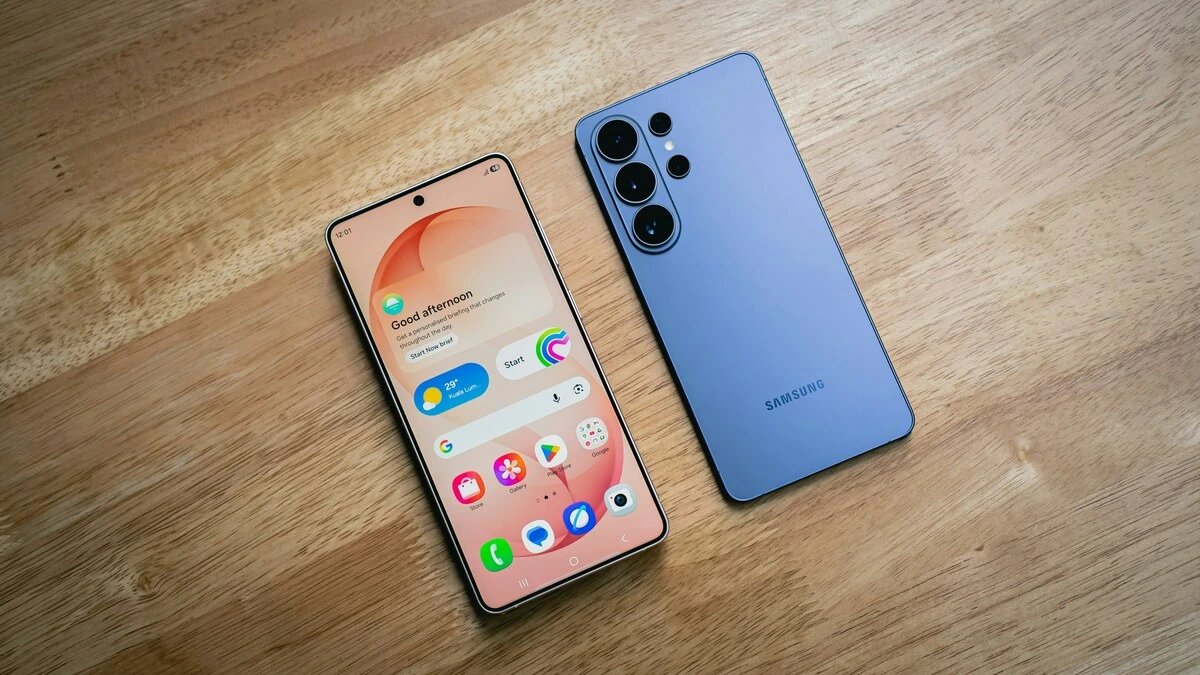

Short answer: For most people, the best Galaxy S26 Ultra camera settings are: Photo enhancer set to Prioritize quality, 24MP turned on through Samsung’s free Camera Assistant app, the 3x or 5x lens for portraits, Night mode left on Auto (or Max for still scenes), and video at 4K 30fps (or 4K 60fps for movement) with Video stabilization on. Keep 200MP for bright, still scenes you plan to crop. Keep 8K, Log and APV for footage you’ll edit, because they cost a lot of storage.
Updated for One UI 9 (Android 17) · Last checked October 10, 2026 · By Stephen Jacob
The S26 Ultra’s camera is better than its defaults suggest. Samsung ships it at 12MP, hides 24MP, the dedicated Night mode and many controls in a separate app, and leaves pro video formats off. This guide sets each one up by scenario. For the hardware in plain English, see our S26 Ultra specs explainer.
Where the camera settings live
- Camera settings: open Camera, tap Quick controls (the four dots), then the Settings icon (Samsung).
- Camera Assistant: a free Samsung app in the Galaxy Store (or Good Lock). Once it’s installed, it opens from the bottom of Camera settings.
- Expert RAW: a separate free Samsung camera app in the Galaxy Store.
- Reset everything: Camera settings → Reset settings.
Best Galaxy S26 Ultra camera settings at a glance
| Setting | Where | Recommended | Why |
|---|---|---|---|
| Photo enhancer | Camera settings → Intelligent features | Prioritize quality | Required for 24MP to save at 24MP |
| Scene optimizer | Inside Photo enhancer | On for punchy colour; off for a more natural look | Adjusts exposure, contrast and white balance by scene |
| 24MP resolution | Camera Assistant → 24MP resolution | On, plus keep 24MP | More detail than 12MP and keeps every lens |
| Photo format | Camera settings → Photos | HEIF on if storage is tight; Pro mode pictures RAW and JPEG | Smaller files; a DNG for edits |
| Composition guide | Camera settings → General | On | Grid lines and a level |
| Settings to keep | Camera settings → General | Keep Camera mode | Reopens Pro or Video where you left it |
| Night mode | Moon icon in Photo mode | Auto; Max for still scenes | It’s a toggle now, not a mode |
| Video resolution | Video mode, resolution chip | 4K 30fps; 4K 60fps for motion | Best balance of quality, size and heat |
| Video stabilization | Camera settings → Videos | On handheld, off on a tripod | Smoother clips |
| Auto FPS | Camera settings → Videos | Off for motion; on for casual night clips | Stops the frame rate dropping without warning |
| Log / APV | Camera settings → Video format | Off unless you’ll grade the footage | Flat, very large files |
| Zoom-in mic | Camera settings → Audio options | On for distant subjects | Audio follows the zoom |
Which S26 Ultra camera settings should you change first?
These eight changes make the biggest difference. Each is documented by Samsung, and the order reflects what owners ask about most in forums.
- Set Photo enhancer to Prioritize quality. Samsung says photos save at 24MP only with this option; Balanced and Prioritize speed save at 12MP (Samsung).
- Install Camera Assistant and turn on 24MP resolution. Turn on the option to keep 24MP too, so the camera doesn’t drop back to 12MP every time you reopen it. Other Camera Assistant settings worth changing are below.
- Bring back the dedicated Night mode if you want manual control: Camera Assistant → Additional modes → Night. Single Take and Dual recording come back the same way.
- Add Pro and Pro video to the mode bar. Tap More, then Edit, and drag them down. See Pro mode setup.
- Turn on Composition guide for grid lines and a level.
- Under Settings to keep, keep Camera mode so the app reopens where you left it.
- Set the Side button to open the camera: Settings → Advanced features → Side button → Double press → Open Camera.
- Decide on Auto FPS. Turn it off if you film people, pets or sport, because a frame rate that drops in dim light makes motion choppy.
Which S26 Ultra lens should you use?
Start on 1x, use 3x or 5x for people and 0.6x for wide scenes. The 200MP main camera has by far the largest sensor and brightest lens, so it handles low light and fine detail best.
| Zoom stop | Camera | Aperture | Sensor (per GSMArena) | Best for |
|---|---|---|---|---|
| 0.6x | 50MP ultra-wide | f/1.9 | 1/2.5″, ISOCELL JN3 | Landscapes, rooms, groups |
| 1x | 200MP wide | f/1.4 | 1/1.3″, ISOCELL HP2 | Everything, especially low light |
| 2x | Crop of the 200MP sensor | f/1.4 | – | Food, half-body portraits, street |
| 3x | 10MP telephoto | f/2.4 | 1/3.94″, ISOCELL 3LD | Portraits in good light |
| 5x | 50MP telephoto | f/2.9 | 1/2.52″, Sony IMX854 | Portraits, stage, sport, wildlife |
| 10x | Crop of the 50MP 5x sensor | f/2.9 | – | Distant detail in daylight |
| Front | 12MP selfie | f/2.2 | 1/3.2″, ISOCELL 3LU | Selfies, video calls |
Apertures and zoom labels come from Samsung’s launch spec sheet, which credits the f/1.4 main lens with 47% more light than the S25 Ultra’s and the f/2.9 5x with 37% more. 3x and 5x are optical; 2x and 10x are sensor crops Samsung calls “optical quality”.
Two limits matter. GSMArena’s camera review rates the 3x the weakest camera, especially at night, and measured worse close focus: 18cm on the main camera (8cm on the S25 Ultra) and 52cm on the 5x. For small objects, step back and crop. There’s no variable aperture either; “virtual aperture” is a simulated control in Expert RAW.
Should you shoot 12MP, 24MP, 50MP or 200MP?
Use 24MP as your everyday setting, 12MP in low light and for fast action, and 50MP or 200MP only in bright light when you plan to crop or print large.
| Resolution | How to get it | Use it for | Trade-offs |
|---|---|---|---|
| 12MP (default) | Quick controls → Resolution | Night, indoor action, bursts | Least detail to crop |
| 24MP | Camera Assistant → 24MP resolution | Everyday photos | Only at 0.6x–1.9x and 5x–9.9x |
| 50MP | Quick controls → Resolution | Bright landscapes; also on the 0.6x and 5x | Slower; bigger files |
| 200MP | Quick controls → Resolution (1x) | Bright, still scenes you’ll crop | Locked to the main lens; huge files; highlights can clip |
Samsung’s rules for 24MP explain most “why is my photo 12MP?” questions. On the S26 Ultra, 24MP applies only at 0.6x–1.9x and 5x–9.9x. It drops to 12MP outside those ranges and for close-ups, burst shots, from the third shot taken within a second, with flash, in Night mode, for document scans, when the phone is too hot, and when Photo enhancer isn’t on Prioritize quality (Samsung). So a 3x shot is always 12MP.
At 200MP, SamMobile notes you lose the 3x and 5x lenses and can clip highlights in bright light. With Camera Assistant’s Adaptive pixel on, the phone may also capture at 50MP or 12MP in poor light and upscale to your chosen resolution (Samsung Members). For true full-resolution captures, turn it off and shoot in good light. If 24MP looks over-sharpened, set Photo softening (Camera Assistant) to Medium.
What are the best S26 Ultra zoom settings?
Tap the zoom numbers instead of pinching, and stay on 3x, 5x or 10x when you can. In-between levels are digital crops.
- Past 10x, Space Zoom engages and shows a thumbnail to keep the subject centred. Use it for signs, birds or the moon, and brace the phone.
- One UI 9 softened the heavy sharpening at 10x–14.9x in 24MP mode, according to SammyGuru’s comparison. They found 12MP still worked better past 14.9x.
- Auto lens switching (Camera Assistant) swaps lenses when light is poor or the subject is close. Turn it off if 5x keeps becoming a cropped 1x image indoors.
- Zoom shortcuts (Camera Assistant) let you choose the stop buttons, such as 2x, 10x and 100x.
- For the moon, rest the phone on something solid, zoom to 30x or more and lower the exposure until craters appear.
What are the best S26 Ultra portrait settings?
Use Portrait mode at 3x or 5x, and 5x when the light is good. Longer lenses give more natural facial proportions, and GSMArena found the 5x renders detail and skin better than the 3x. Use 1x or 2x when you can’t step back.
- Adjust blur before or after the shot, and try effects such as Studio, Stage and High-Key Mono.
- Skin looks too crisp? Camera Assistant → Photo softening (Off, Medium or High) works in Photo and Portrait modes.
- Selfies: turn off Save selfies as previewed to save them the way others see you, and use the wider front angle for groups.
- Portrait video (under More) adds adjustable blur to video.
Where is Night mode on the S26 Ultra?
It’s a toggle in Photo mode now. A moon icon appears when the phone judges the scene dark enough, with Off, Auto and Max (longer exposures). You can’t force it on, and GSMArena found it sometimes doesn’t appear at all. To get the dedicated mode back, open Camera Assistant → Additional modes → Night; it then appears under More (SamMobile).
The best night settings:
- Leave the moon toggle on Auto for people and handheld shots. Use Max for still scenes, with the phone braced.
- Shoot 12MP. Night mode saves at 12MP anyway, and pixel binning gives cleaner results.
- People moving? In Camera Assistant → Advanced Photo mode controls, set a minimum shutter speed (1/120s is a good start) and a maximum ISO. These limits apply only at 12MP.
- Stay on 1x or the 5x. Avoid the 3x after dark.
- Use the timer or voice commands (Camera settings → Shooting methods) for long exposures. The S26 Ultra’s S Pen has no Bluetooth, so it can’t work as a remote shutter, whatever some guides say.
Concerts: use 5x, lower the exposure until stage lights hold their colour, and keep the 1/120s minimum shutter. That’s my approach, not Samsung guidance.
How should you set up Pro mode on the S26 Ultra?
Pro mode lets you set ISO, shutter speed, exposure, white balance and focus yourself. Use it when auto keeps getting one wrong. My starting setup:
- Save RAW and JPEG: Camera settings → Photo format → Pro mode pictures.
- ISO as low as the light allows. Shutter at 1/250s or faster for moving people, slower on a tripod.
- Dark bands under indoor lights? Samsung’s fix is a shutter speed of 1/120s or slower in Pro mode. That’s mains-lighting flicker, not a fault.
- Focus peaking in pro modes (Camera Assistant) makes manual focus easier, and Presets in Pro mode saves your ISO, shutter, exposure, focus and white balance, even copying them from an earlier photo.
- Prioritize focus over speed (Camera Assistant) stops the shutter firing before focus locks.
Is Expert RAW worth using on the S26 Ultra?
Yes, if you edit your photos. Expert RAW saves a 16-bit linear DNG plus a JPEG, and SamMobile notes its multi-frame RAW has wider dynamic range than Pro mode’s. It works on all four rear cameras. The basics:
- Shoot RAW at 12MP or 24MP. SammyGuru found the 50MP and 200MP RAW files less flexible to edit.
- Turn on Special photo options in its settings for Astrophotography (with a Sky Guide constellation overlay), Multiple exposure, Virtual aperture and ND filter. Samsung’s older guide says these need 12MP.
- Virtual Reflector, new with the S26 Ultra, lifts shadows on backlit faces.
- Astrophotography uses long exposures: bring a tripod and find a dark sky.
- 24MP at 5x–9.9x saved at 12MP in early builds; a One UI 9 beta changelog lists a fix, so update and check.
What are the best S26 Ultra video settings?
Use Video mode at 4K 30fps with stabilisation on for most clips, 4K 60fps for kids, pets and sport, and Pro video at 4K 24fps for a film look. Turn on Log or APV only when you’ll colour-grade.
Should you record 4K60 or 8K?
Record 4K60. 8K helps when you crop or pull stills, but it’s limited to 30fps, makes large files and heats the phone faster.
| Mode | Resolutions and frame rates | Notes |
|---|---|---|
| Video | Up to 4K60 on every camera, including the front; 8K30 at 0.6x, 1x and 5x | Auto FPS, Super Steady, Nightography processing |
| Pro video | Adds 24fps at 4K and 8K, 4K120 (1x and 0.6x), FHD 120 | Manual exposure, zebras, false colour, mic controls, Log, APV |
| Slow motion | 240fps at FHD, 120fps at UHD | Clear, well-lit movement works best |
| APV (Pro video for 24 and 120fps) | 8K 24–30fps; UHD, FHD and HD 24–120fps | 4:2:2 10-bit; HDR or Log only |
Sources: GSMArena, Samsung’s spec pages and the Samsung Developer APV page. There’s no 8K60: Samsung lists 8K at up to 30fps.
Which stabilisation setting should you use?
Keep Video stabilization on handheld; GSMArena calls it “about as good as it gets”, even at 5x. On a tripod or gimbal, turn it off, plus Camera Assistant’s separate Optical image stabilization switch.
Super Steady crops in further for running and action, and Horizontal lock keeps the horizon level even if the phone rotates. In Video mode, tap the Super steady icon, then the Horizontal lock icon. It isn’t available on the front camera, in Pro video or Portrait video, and GSMArena found it tops out at 1440p, so save it for action.
Should you use Log or APV?
Use Log if you grade and want manageable files, APV for serious edits, and neither for clips you share straight away, because both look flat until graded.
- Log records Samsung’s flat Log curve in 10-bit HEVC. Turn it on at Camera settings → Video format, for Pro video only or Video too. A LUT preview shows a normal image while you record; GSMArena lists Standard plus four looks (Blockbuster, Coming-of-age, Romance, Thriller), with no custom LUT import.
- APV (Advanced Professional Video) is an S26 Ultra-only, visually lossless 4:2:2 10-bit codec. Turn it on at Camera settings → Video format → APV, choose HDR or Log and HQ or LQ, then tap the APV icon in the viewfinder. Samsung lists 796Mbps for 4K30 HQ against 35Mbps for HEVC HDR, about 6GB a minute.
- Sharing APV: Gallery converts APV to HEVC, and Samsung lists YouTube, Instagram, Google Photos and LumaFusion among the apps that accept it.
Auto FPS, HDR and file format
- Auto FPS (Video mode only) lowers the frame rate in low light to brighten the image: fine for casual night clips, off for anything that moves.
- HDR videos shine on HDR screens but can look odd on some apps and older displays. HDR10+ is a Camera Assistant switch that needs HDR on.
- High efficiency videos keep files small; add High bitrate videos if you see compression artefacts.
- Video softening (Camera Assistant) tones down sharpening if footage looks “phone-like”.
Which audio settings matter?
Turn on Zoom-in mic so the audio zooms with the picture, useful for speeches or a school play. 360 audio recording works through Bluetooth earbuds, and Audio playback keeps music playing while you film. Pro video adds mic direction and level meters, and Camera Assistant’s Audio monitoring lets you listen live. Afterwards, Gallery’s Audio eraser (Edit → Audio eraser) turns down wind, crowds, music or voices.
How much storage does S26 Ultra video need?
More than you think. There’s no microSD slot, and the phone comes with 256GB, 512GB or 1TB. At Samsung’s bitrates, an hour of 4K30 APV HQ takes about 358GB, while 4K60 HEVC is roughly 0.4GB a minute. APV recording also needs 10% of internal storage free.
The microSD alternative is a USB-C SSD: turn on Save to external storage (the name varies by region) and Samsung’s Safe save. Samsung asks for an exFAT, unencrypted drive, a USB 3.0 or faster cable (10Gbps recommended), and sustained writes of 400MB/s for 4K120 and 8K30 (200MB/s below that) on no more than 4.5W of power. Samsung says it validated its latest Portable SSD models at every APV resolution.
Long 8K or 4K120 clips in the sun can trigger “Exit Camera. Battery temperature too high.” See our overheating guide. For long takes, Camera Assistant’s Dim screen while recording saves power; the battery drain guide covers the rest.
Which Camera Assistant settings are worth turning on?
Camera Assistant holds the settings Samsung keeps out of the main menu. These are worth changing:
| Setting | Set to | Why |
|---|---|---|
| 24MP resolution | On, and keep it | Better everyday detail |
| Additional modes | Night (plus Single take or Dual recording if you use them) | Restores modes One UI 8.5 hid |
| Advanced Photo mode controls | Minimum shutter 1/120s for people | Fewer blurred shots (12MP only) |
| Quick tap shutter | On | Takes the photo on press, not on release |
| Photo softening / Video softening | Medium if images look over-sharpened | More natural texture |
| Auto lens switching | Off once you know the lenses | Stops 5x being swapped for a crop |
| Focus peaking in pro modes | On | Easier manual focus |
| Camera timeout | 5 or 10 minutes | Stops the camera closing on a tripod |
Leave Auto HDR and Distortion correction at their defaults unless you have a reason to change them.
What changed in the camera with One UI 9?
Not much in the camera app, says SamMobile; 24MP and Horizontal lock arrived with One UI 8.5. One UI 9 adds horizontal or vertical split layouts for Dual recording, and My FanCam in Gallery: open a video, tap the Galaxy AI button, pick a person, and it reframes the clip around them, for example as a vertical Reel. SammyGuru also saw slightly cleaner processing. See One UI 9 explained for the rest.
What if the S26 Ultra camera isn’t working properly?
Settings can’t fix faults. Blurry 3x photos (fixed in a Samsung update), lens fogging and other camera glitches are covered in our S26 Ultra problems hub; a viewfinder that darkens is in screen problems. Try Camera settings → Reset settings and an update first.
FAQ
Does the S26 Ultra have a Night mode?
Yes, but it’s a moon toggle in Photo mode (Off, Auto, Max) that only appears in dark scenes. To get the standalone mode back, open Camera Assistant → Additional modes → Night.
Should I shoot 12MP or 24MP on the S26 Ultra?
Use 24MP for everyday photos in decent light and 12MP for night, action and bursts. The phone switches to 12MP on its own outside 0.6x–1.9x and 5x–9.9x.
Does the S26 Ultra have Log video?
Yes. Turn on Log in Camera settings → Video format for Video and Pro video modes. It records 10-bit HEVC, or APV on the Ultra.
Can the S26 Ultra record 4K 120fps or 8K 60fps?
It records 4K 120fps in Pro video and Slow motion. 8K tops out at 30fps, so there’s no 8K60.
Does the S26 Ultra have a variable aperture?
No. Each lens has a fixed aperture (f/1.4 on the main camera). Expert RAW’s Virtual aperture simulates depth of field in software.
How far can the S26 Ultra zoom?
Up to 100x digital Space Zoom. The optical stops are 3x and 5x, and 2x and 10x are high-quality sensor crops. For sharp results, stay at 10x or below.
How do I reset the S26 Ultra camera settings?
Open Camera → Quick controls → Settings, then scroll down and tap Reset settings.
The bottom line
Ten minutes of setup fixes the S26 Ultra’s defaults: Prioritize quality, 24MP via Camera Assistant, Night mode restored, Pro modes in the mode bar, and 4K30 or 4K60 for video. Then match the lens to the job (1x for low light, 5x for people) and save 200MP, 8K, Log and APV for shots that need them.
For the rest of day-one setup, see 25 settings to change first and tips and tricks. For how the camera stacks up, read our review and S26 Ultra vs iPhone 17 Pro Max. Everything else is in the Galaxy S26 Ultra owner’s guide.