Physical Address
304 North Cardinal St.
Dorchester Center, MA 02124
Physical Address
304 North Cardinal St.
Dorchester Center, MA 02124

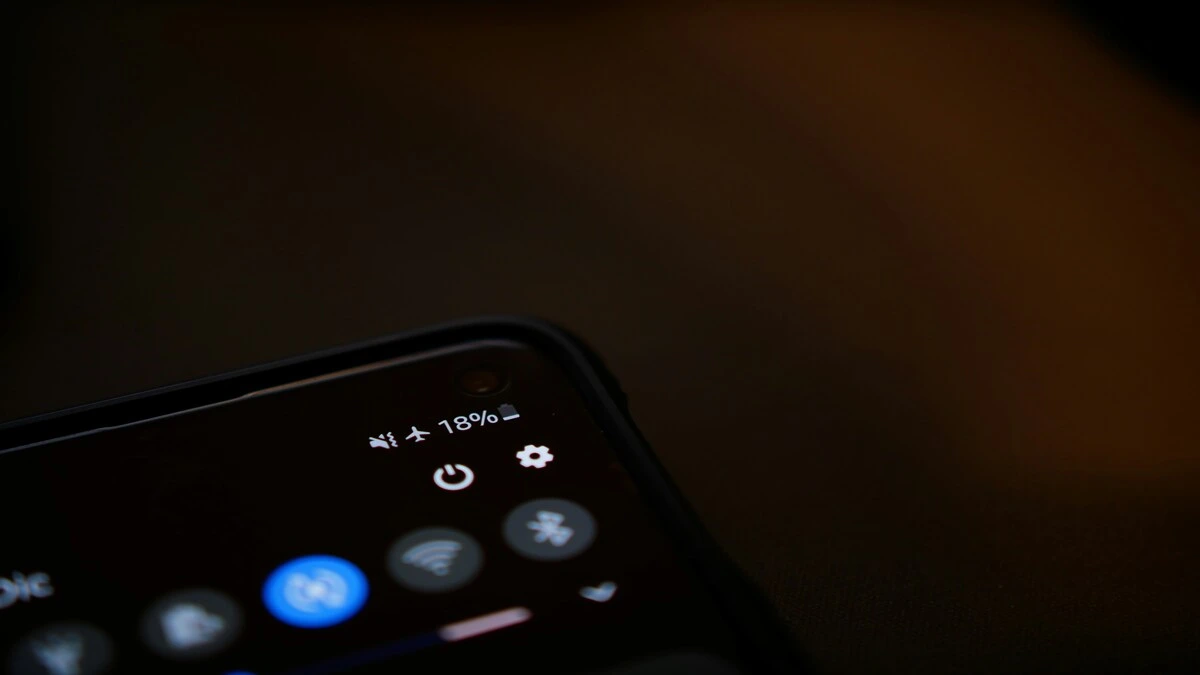
Is your Samsung Galaxy battery draining faster than expected? These simple settings and everyday habits can help extend battery life without sacrificing the features you use most.
A Samsung Galaxy phone can last a full day once its settings are set up correctly. If your battery seems to be draining faster than before, you generally don’t need to buy a new phone; instead, identify the cause and make a few specific changes.
Background apps, a high screen brightness, location services, demanding apps, and some connectivity options can all cause the battery to drain more quickly. Check the following settings, starting with the most effective.
Regarding menu paths: for your particular model and version of One UI, the battery menu is located either under Settings → Battery or under Settings → Battery and device care → Battery. If the path below doesn’t match your phone, first check the section under Battery and device care.
This guide covers two related but distinct objectives: battery life (how long a charge lasts today) and battery health (how well the battery retains its capacity over the years). Most of the tips here focus on improving battery life; a section near the end of the guide addresses battery health.
This is the most effective change most people can make, and it should be done first. With One UI, you can automatically place apps you hardly use into a low-power state. Several independent tests have found improvements of 20 to 30 per cent or more from this alone, without reducing brightness or refresh rate.
Settings → Battery → Background usage limits
You’ll find three controls:
As a caution, deep sleep can delay or prevent notifications from that app, so avoid adding any messaging, cloud-backup, or work apps you depend on. There is also a list of apps that never sleep, so you can include the ones you always want to keep active.
Avoid guessing; first, check where the power is going.
Settings → Battery → (usage breakdown)
If an app you don’t use much appears near the top, that’s the one; you should update it, limit its background activity (see section 1), or remove it altogether. Generally the battery is not the phone’s problem; one badly optimised or continuously active app can be more damaging than all the other apps put together.
It is also the first place you should look when a drain occurs suddenly. Find out what has recently changed: for example, whether a new app has been installed, if there has been a software update, if GPS or gaming use has increased, or whether there has been a period of poor network coverage. The usage statistics usually clearly indicate the cause.
The display is typically the biggest single power consumer, especially on a large, high-refresh Galaxy panel.
Instead of leaving it at maximum, open the Quick Settings panel and lower the slider when you’re indoors, or turn on Adaptive brightness so the phone adjusts to the surrounding light. If you’re using the Always On Display, change it to Tap to show rather than always-on—or turn it off—to eliminate the continuous background power consumption.
On Galaxy AMOLED/OLED screens, black pixels are switched off entirely, so dark interfaces genuinely use less power.
Settings → Display → Dark mode
It won’t double your battery, but if you spend a lot of time on screen, it adds up, and it’s easier on the eyes at night.
High refresh-rate displays make everything feel smoother but cost power. When battery matters more than smoothness — travel days, long stretches from a charger — switch to a standard rate.
Settings → Display → Motion smoothness → Standard (60Hz)
You don’t have to leave it there permanently; toggle it when you need the extra hours.
Modern Galaxy phones run a lot of radios and scanners. You don’t need all of them on all the time. From Quick Settings, consider switching off what you’re not using:
Bluetooth, Mobile hotspot, NFC, Location, Wi-Fi scanning and Nearby device scanning.
Don’t be obsessive about it — if you wear Bluetooth earbuds all day, leave Bluetooth on. The goal is to cut unnecessary activity, not make the phone inconvenient. Nearby/Wi-Fi scanning are the safest to disable, since they run constantly in the background for little everyday benefit.
When you’re away from a charger and need to stretch what’s left, Power saving mode limits background activity, caps performance, and turns off heavier features like the Always On Display.
Settings → Battery → Power saving mode
It’s most useful as a “get me to the end of the day” tool rather than something to run permanently.
On a solid Wi-Fi connection, data use is often more power-efficient than relying on mobile data—particularly where cellular coverage is weak. A phone constantly hunting for signal in a low-coverage area burns extra power, so poor reception itself can be a hidden drain.
Updates aren’t only about features. Samsung and app developers regularly ship fixes that resolve battery regressions and background-activity bugs.
Settings → Software update
Keep frequently used apps current through the Galaxy Store or Play Store too. If drain spikes right after a specific update, check whether a follow-up patch is already available.
Heat is the biggest long-term enemy of lithium-ion batteries. Your Galaxy runs warm during gaming, video recording, navigation or charging in hot conditions — and sustained heat permanently reduces capacity.
Keep it out of direct sun and hot cars, and if it gets unusually hot while charging, drop the workload and let it cool. (No need to refrigerate it — please don’t.) Avoiding heat protects both today’s life and long-term health.
Everything above helps a charge last longer today. This section is about keeping the battery healthy over years — a different goal, and one worth setting once and forgetting.
The core principle: lithium-ion cells are stressed when they sit at 100% for long periods. If you charge overnight or keep the phone plugged in a lot, capping the charge helps.
Settings → Battery → Battery protection(some models: Protect battery)
On current One UI, you get three modes:
A few practical points on charging habits: you don’t need to drain to 0% before charging — routine full discharges aren’t necessary, and topping up throughout the day is fine. Fast charging and wireless charging both generate more heat than slow wired charging, so for overnight or desk-side top-ups, slower is gentler on the cell.
For a deeper look at how each Galaxy model holds up, see our Galaxy battery test and charging test results.
If you’ve worked through the settings and the battery still drops quickly, treat it as a diagnosis rather than piling on more restrictions.
Start with the battery usage stats (section 2) and line them up against what changed recently — a new or updated app, changed display settings, heavier GPS/video/gaming use, more mobile data, or poor coverage. If nothing obvious appears and the phone is a few years old, the cell itself may simply be ageing, and the health section above (or a battery replacement) is the real fix.
The Bottom Line
You don’t need to turn off every feature to get better battery life. Focus on the biggest sources of unnecessary drain: sleeping apps, screen brightness, high refresh rates, location and background activity, poor coverage and demanding apps.
Check your usage stats first, then make a few targeted changes — that beats switching everything off and ending up with a phone that lasts all day but barely does anything. If it’s still draining unusually fast afterwards, that’s your signal to investigate a specific app or an ageing battery, not to keep stacking on battery-saver settings.
For more, see our best Galaxy S phone for battery, our speed up your Samsung phone guide, and the wider One UI settings guide.