Physical Address
304 North Cardinal St.
Dorchester Center, MA 02124
Physical Address
304 North Cardinal St.
Dorchester Center, MA 02124

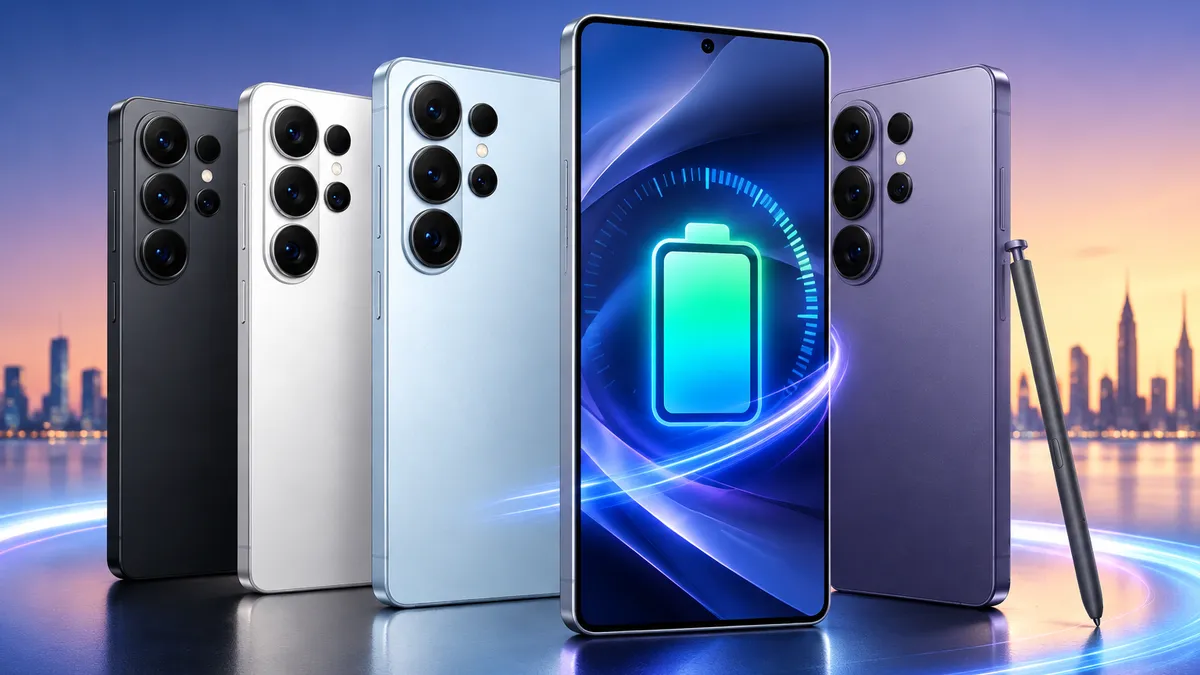
How long does the Galaxy S26 Ultra's 5,000mAh battery really last? We break down real-world screen-on time by usage, the highest-impact settings to squeeze out more hours, what to know about 60W charging, and how to keep the battery healthy for years.
The Galaxy S26 Ultra battery is a chunky 5,000mAh device, the biggest one in the S26 family. For most folks, that means you can get through a whole day without worrying. Of course, what counts as ‘a full day’ really depends on how you use your phone. The good news? There are a bunch of simple tweaks you can make to squeeze even more life out of it. Let’s walk through what you can actually expect from the battery, and which settings really move the needle.
If your battery is dropping way faster than it should, that’s a different story—check out my 9 fixes for fast battery drain. Here, I’m focusing on what’s normal for a healthy battery, and how you can get the most out of it day to day. For anything else, the Complete Owner’s Guide has you covered.
Samsung says the Ultra can do up to 31 hours of video playback, but let’s be real—that’s a lab number. In everyday life, most people see about 14 to 16 hours of screen-on time with a mix of browsing, messaging, videos, and snapping a few photos. So what does that actually look like?
You’ll get solid, all-day battery life here, though it’s not quite the absolute best out there. If you’re curious, the iPhone 17 Pro Max lasts a bit longer on a single charge. But the Ultra makes up for it with much faster charging, which I’ll get to in a bit.
The biggest battery hogs in real life? Brightness and refresh rate top the list, followed by using mobile data when your signal is weak, GPS navigation, gaming, and recording video. If you keep an eye on those, the rest barely make a dent.
The Settings That Extend Battery Life Most
You don’t have to turn your Ultra into a brick to get better battery life. Just a handful of smart tweaks can give you noticeably more time between charges, without making your phone a pain to use. (If you’ve seen my 25 Settings to Change First, these are the battery-specific highlights.)
Put unused apps to sleep. Settings → Battery → Background usage limits. The single biggest win: stops apps you rarely open from draining power in the background.
Turn on adaptive brightness, and don’t be shy about lowering it when you’re indoors. The screen is the biggest battery eater by far. Keeping it at a reasonable level saves more juice than almost anything else.
If you know you’ll be out all day, try switching to the standard refresh rate (Settings → Display → Motion smoothness → Standard). 60Hz uses a lot less power than 120Hz, so it’s worth toggling when you won’t be near a charger.
Turn on Dark mode. Settings → Display → Dark. On the Ultra’s AMOLED screen, dark pixels genuinely use less power.
Tame the Always On Display. Head to Settings → Lock screen and AOD → ‘Tap to show.’ Having the clock on all the time quietly sips away at your battery all day.
When your battery’s running low, flip on Power Saving mode (Settings → Battery → Power saving). It reins in background stuff and performance, so you can squeeze out those last few hours.
If you want the full step-by-step (including how to track down what’s secretly draining your battery), check out my battery optimisation how-to.
Charging: The Ultra’s Real Advantage
Here’s where the S26 Ultra really shines: charging speed. With 60W wired charging, you can go from empty to about 75% in just half an hour (as long as you’ve got the right charger). That means you can ditch the old habit of charging overnight and just top up while you’re getting ready in the morning. Honestly, that quick boost is way more useful day-to-day than having a slightly bigger battery.
Two things to know:
Protecting Long-Term Battery Health
Battery life is how long a charge lasts today; battery health is how well the battery holds up over years. They’re different, and the Ultra has a setting specifically for health:
Settings → Battery → Battery protection
If you usually charge overnight, it’s worth turning on Adaptive or Maximum. Letting your phone sit at 100% for hours is what really wears out a battery over time.
A couple of other habits help too: keep your phone out of extreme heat (that’s the big long-term enemy), try not to let it hit 0% too often, and remember that fast and wireless charging make things warmer, so slower overnight charging is actually kinder to your battery.
When It’s Not You — It’s the Battery
If you’ve tried all these tips and your Ultra is still losing charge way too quickly, something else is up. It could be a misbehaving app, a buggy update, or if your phone’s older, maybe the battery itself is getting tired. Instead of just stacking on more battery-saving tricks, it’s time to play detective.
My 9 fixes for fast battery drain will help you track down the culprit, and if your phone’s running hot too, check out my overheating guide.
The Bottom Line
For most people, the S26 Ultra really is an all-day phone, and that speedy 60W charging makes topping up feel effortless. If you want to get the most out of it, just put unused apps to sleep, keep your screen brightness in check, and turn on Battery Protection if you charge overnight. Do those three things and you’ll barely have to think about your battery again.
Want to know which charger to get? Head to my charging guide. If your battery’s still acting up, check out the battery drain fixes. For everything else, the Complete Owner’s Guide has you covered.