Physical Address
304 North Cardinal St.
Dorchester Center, MA 02124
Physical Address
304 North Cardinal St.
Dorchester Center, MA 02124

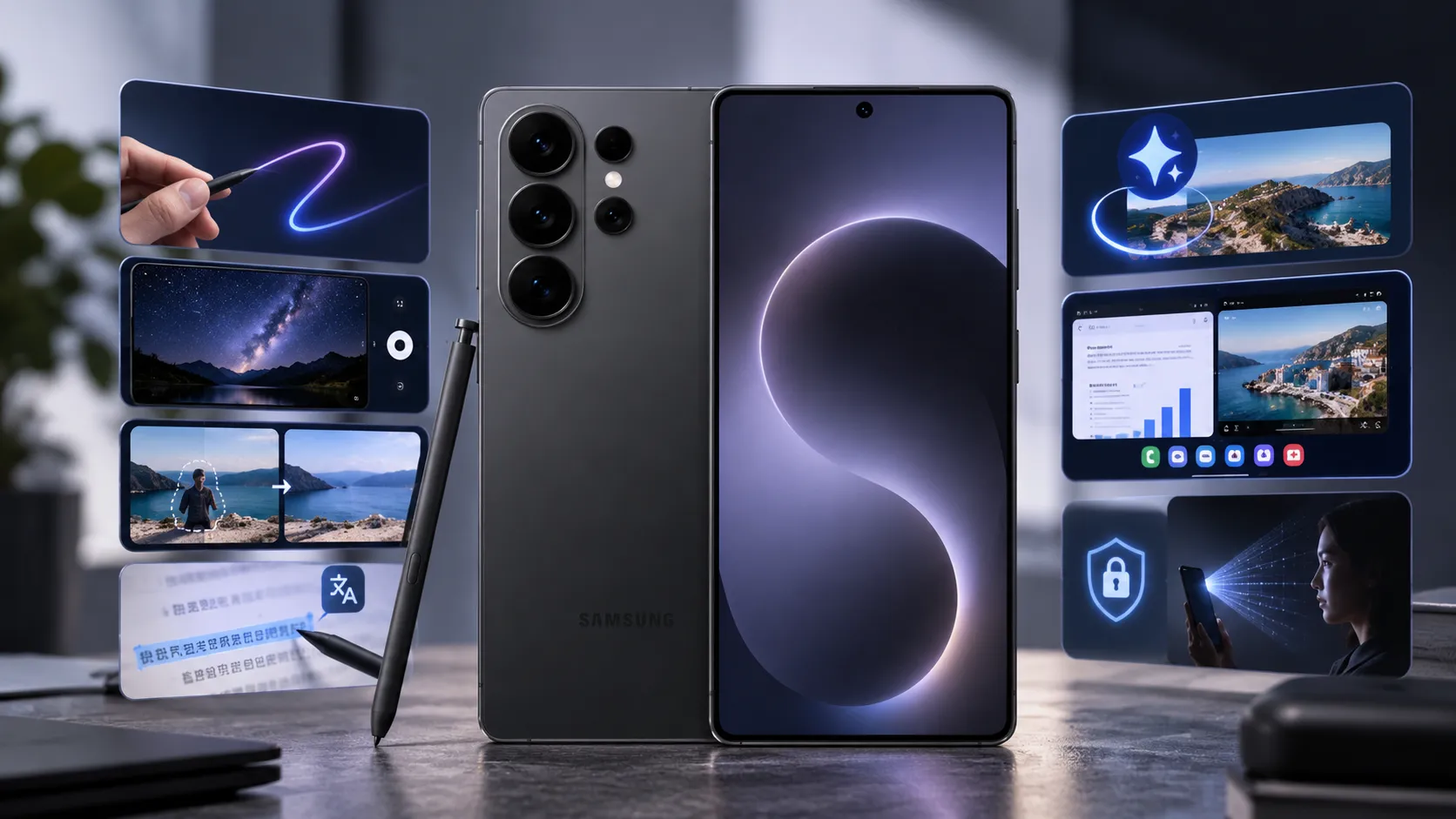
Discover the best Galaxy S26 Ultra tips, tricks and hidden features, from S Pen shortcuts and Galaxy AI tools to camera controls, multitasking, privacy settings and everyday time-saving features.
You can use a Galaxy S26 Ultra for months and still not know half of what it does. Samsung buries some of its best features two or three menus deep, and the S Pen, Privacy Display and Galaxy AI all hide tricks the setup wizard never mentions.
These are the tips actually worth using — the ones that change how you use the phone day to day, not filler you’ll toggle once and forget. They’re grouped by area, so jump to what interests you.
Already done the essentials? These build on 25 Settings to Change First. For everything else about owning the phone, see the Complete Owner’s Guide.
S Pen Tricks Most People Miss
The S Pen is the Ultra’s signature feature, and it does far more than write.
Air Actions — use it as a remote. Hold the pen button and wave to control the camera shutter, skip music tracks or advance slides. Genuinely useful for group photos and presentations.
Screen-off memo. Pull the pen out while the screen is off and start writing instantly — no unlocking, no app—the fastest way to jot a note you’ll ever have.
Smart Select. Use the pen to lasso any part of the screen — a shape, some text, even a section of video — and save it as an image or GIF, or pull the text straight out of it.
Translate on the fly. Hover the pen over foreign text and get an instant translation, word by word or sentence by sentence.
Handwriting to text. Write anywhere you’d normally type — a search bar, a message — and the Ultra converts your handwriting to text as you go.
Camera Features Beyond Point-and-Shoot
The 200MP system has depth most owners never explore. The full walkthrough is in the best camera settings, but these are the standouts:
Zoom Lock steadies long shots. At high zoom, a framing box helps you hold the shot steady — the difference between a usable 30x photo and a blurry one.
Single Take does the work for you. Hit record once, move the phone around a scene, and Ultra automatically captures a batch of photos, videos, and clips, then picks the best.
Pro mode unlocks manual control. Shutter speed, ISO, white balance and focus — everything a real camera gives you, plus RAW capture for editing.
Astrophotography mode. In Expert RAW, the Ultra can shoot the night sky with long exposures — genuinely capable star photos from a phone.
Instant camera launch. Double-press the side button from anywhere — even a locked screen — to open the camera in under a second.
Galaxy AI Tricks Worth Trying
AI is woven through the Ultra, and a few features are genuinely useful rather than novelties:
Circle to Search. Long-press the home button and circle anything on screen — a product, a landmark, a phrase — to search it instantly without leaving the app.
Photo Assist. Describe an edit in plain language (“remove the person in the background,” “fill in the space”) and the AI does it. Reframe, erase and expand shots without editing skills.
Live Translate on calls. Speak to someone in another language and hear a real-time translation during the call.
Note and transcript summaries. Record a meeting or lecture and get an AI transcript and summary — no typing.
Multitasking on the Big Screen
The 6.9-inch display is made for doing two things at once, and most people never use it that way.
Split-screen from Recents. In the app switcher, tap an app’s icon and choose “Open in split screen view” to run two apps side by side.
Pop-up view. Drag any app down from the top corner to float it in a resizable window over whatever you’re doing.
Samsung DeX. Connect the Ultra to a monitor (wired or wireless) for a desktop-style interface — real windows, a taskbar, keyboard and mouse support. The phone becomes a computer.
One-handed mode. Swipe down on the bottom edge to shrink the whole screen toward your thumb — essential on a phone this tall.
Privacy and Security Tricks
Privacy Display on demand. Beyond the on/off toggle, you can set it to activate only for specific apps or notifications — so your banking app is shielded, but your podcast player isn’t.
Secure Folder. A separate, encrypted space on the phone with its own apps and files, locked behind a second layer of biometrics. Ideal for anything private.
Hide sensitive content on the lock screen. Stop message previews and notification content from appearing until you unlock.
Quick SOS. Set the side button to trigger an emergency call and share your location with a rapid press sequence.
Everyday Shortcuts That Save Time
The small ones that add up:
The Bottom Line
You won’t use all of these — nobody does. But a handful will genuinely change how you use the phone: Circle to Search, the screen-off memo, split-screen, and Photo Assist are the ones most people wish they’d known about sooner. Try those first, then explore the rest as you go.
Next, dial in the camera properly with the best camera settings, or squeeze more from the battery with the battery life guide. Everything else is in the Complete Owner’s Guide.